From one kiosk to a national chain — the same three clicks
Enrollment, health, configuration and updates are the operational heart of any device fleet — and the part that usually turns into a project. In ShopVoices they are Console pages: a live topology of every store, devices that enroll themselves, and staged rollouts that cannot strand a shop.
A live picture of everything on the floor
The Network view draws the store as it really is: the store server at the centre, every kiosk, counter, handheld, mobile instance and wireless microphone around it — each with its live online state. A device that stops reporting shows up here first, before anyone on the floor notices.
- Presence from a heartbeat every device sends on its own.
- Per-device detail: version, last seen, assigned screen design, live stats.
- Paired devices — like a wireless mic and its screen — shown as the pair they are.
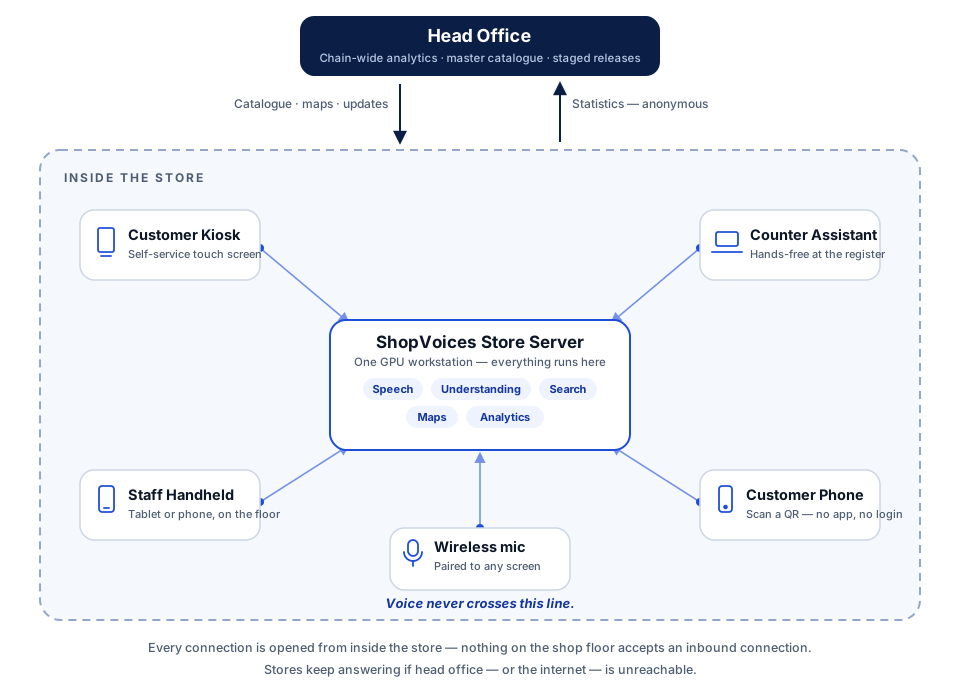
The shape of every ShopVoices store — one server inside the building, every assistant around it.
Every store, pinned — without any external map service
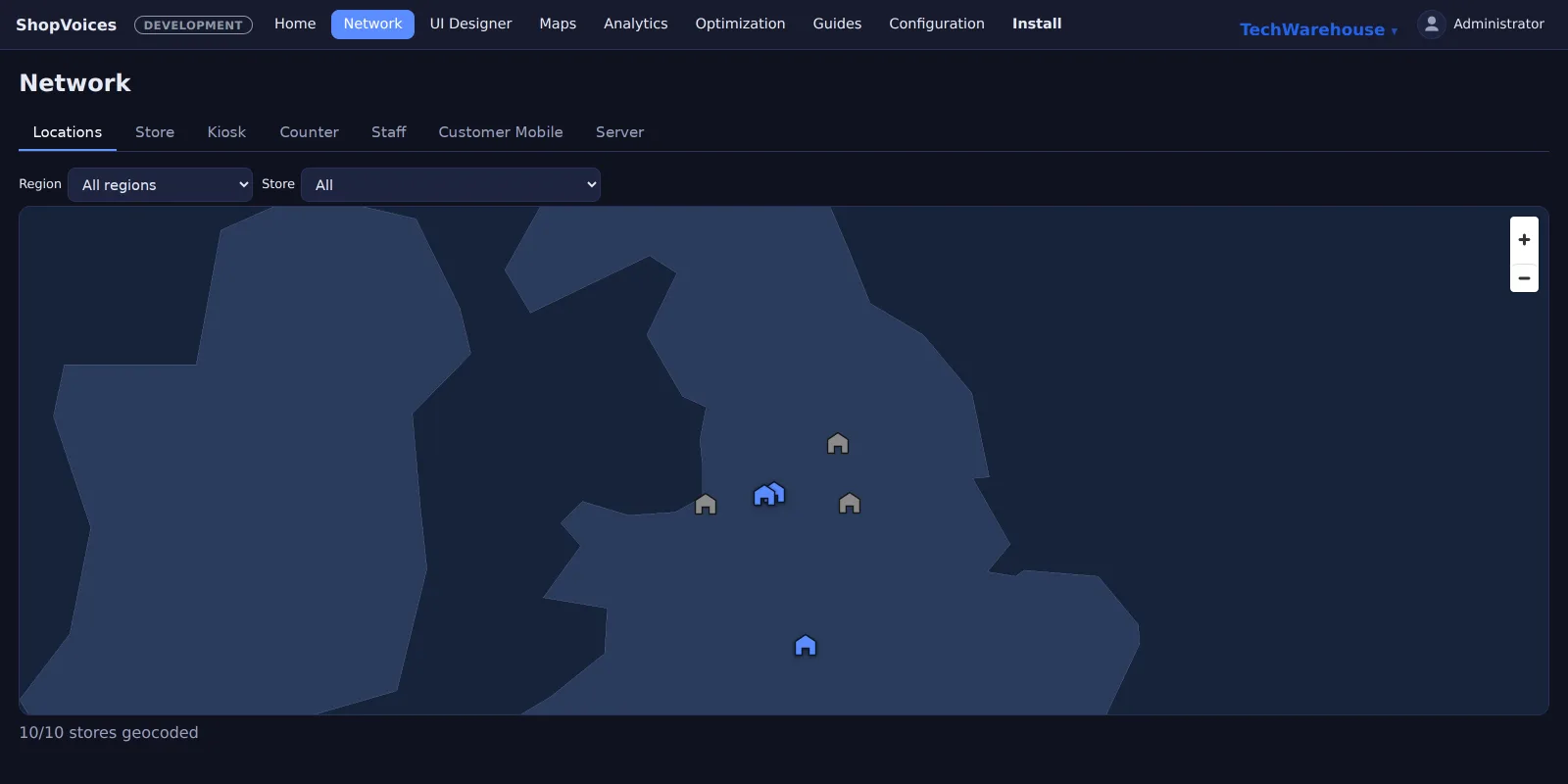
The Locations view plots the whole estate on an interactive map with each store's logo and status. Like everything else in the platform, the map itself is self-hosted — tiles included — so even the estate overview makes no calls to the outside world.
Issue a code — the device does the rest
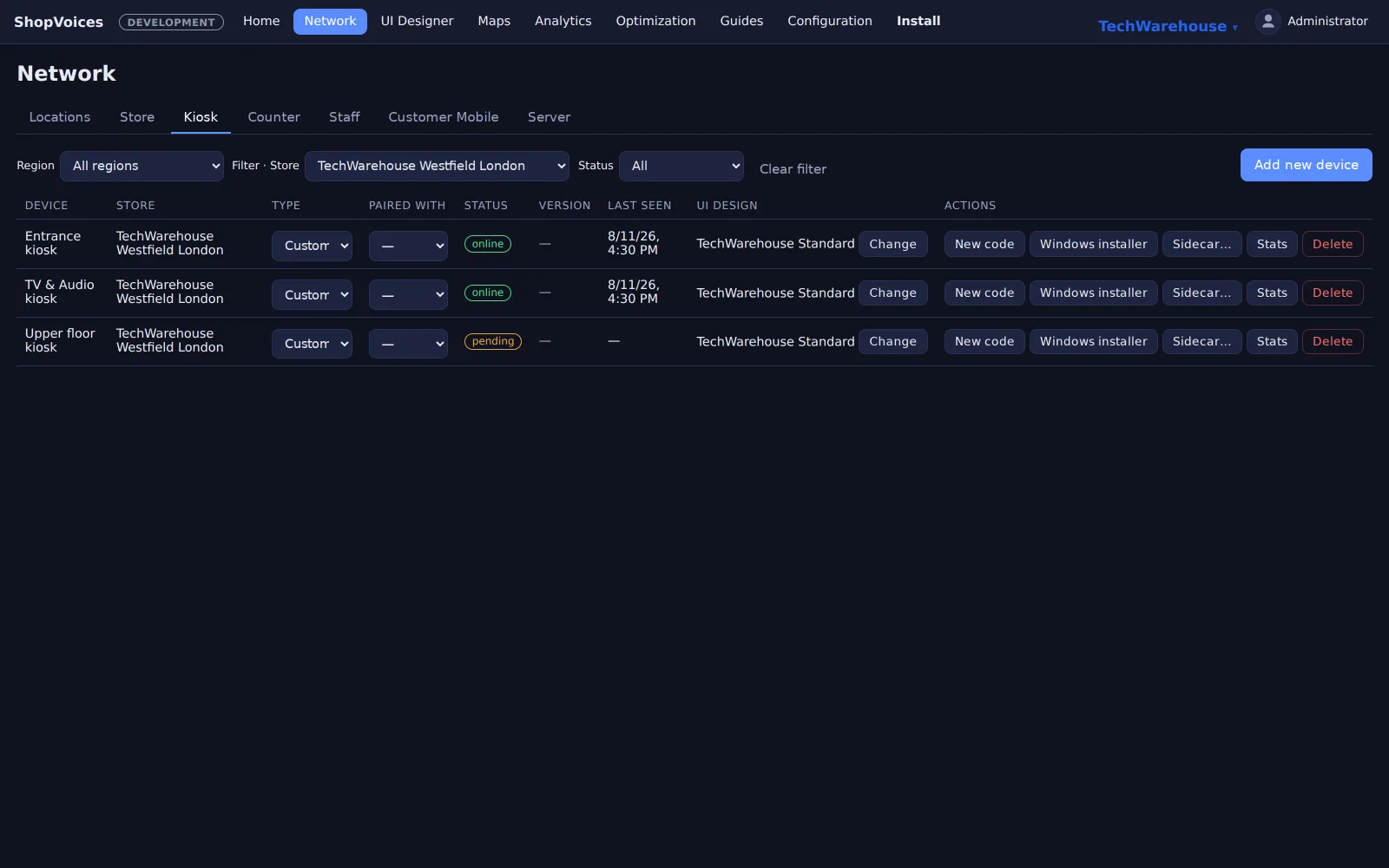
Adding a device is not a technician visit. Issue an enrollment code in the Console and type it on the device — or, for Windows counters, download a per-device installer that carries its own enrollment and needs nothing typed at all. Either way the device registers itself, receives its security certificate, and appears online in the topology within a minute.
- Enrollment codes with a visible countdown — no long-lived secrets.
- Per-device Windows installers generated by the Console.
- QR-code generator for the customer-mobile tier, per store and per placement.
Head office sees every store server — and steers them
Above the stores sits the fleet view: every store server reporting in with status, version and last-seen, chain-wide analytics rolled up, and the master catalogue pushed down from one place. Stores stay autonomous — a store that loses its HQ link keeps answering shoppers and syncs when it returns.
- Fleet roll-up of every store server in the chain.
- Master catalogue distribution from HQ, per-store pickup.
- Store-to-HQ links secured with mutual certificates.
Staged rollouts, health gates, automatic rollback
Releases move through channels and waves: publish to a beta store first, watch its health, then promote. Every store verifies an update's signature, applies it, runs its own smoke checks — and rolls itself back automatically if anything fails, reporting the rejection so the same version stops spreading. The nightmare scenario, a broken update across the chain, is designed out.
- Release channels and rollout waves with health-gated promotion.
- Cryptographically signed releases — unsigned software won't install.
- Automatic rollback plus a fleet-visible rejection that halts the rollout.
Run a fleet without building a fleet team
A pilot exercises the whole lifecycle — enrollment, health, an update — so your IT team sees the operational story first-hand. Or see the fleet view itself in a walkthrough.